


Change the price at the till.
Every TV follows.
Your menu screens read the same menu as your Replily.ai POS. Change a price or mark an item sold out at the counter, and every TV in the shop shows it within about 5 seconds. No USB sticks, no new posters.
- Any TV with a browser or a TV stick
- S$9 per screen a month
- Sold out in one tap
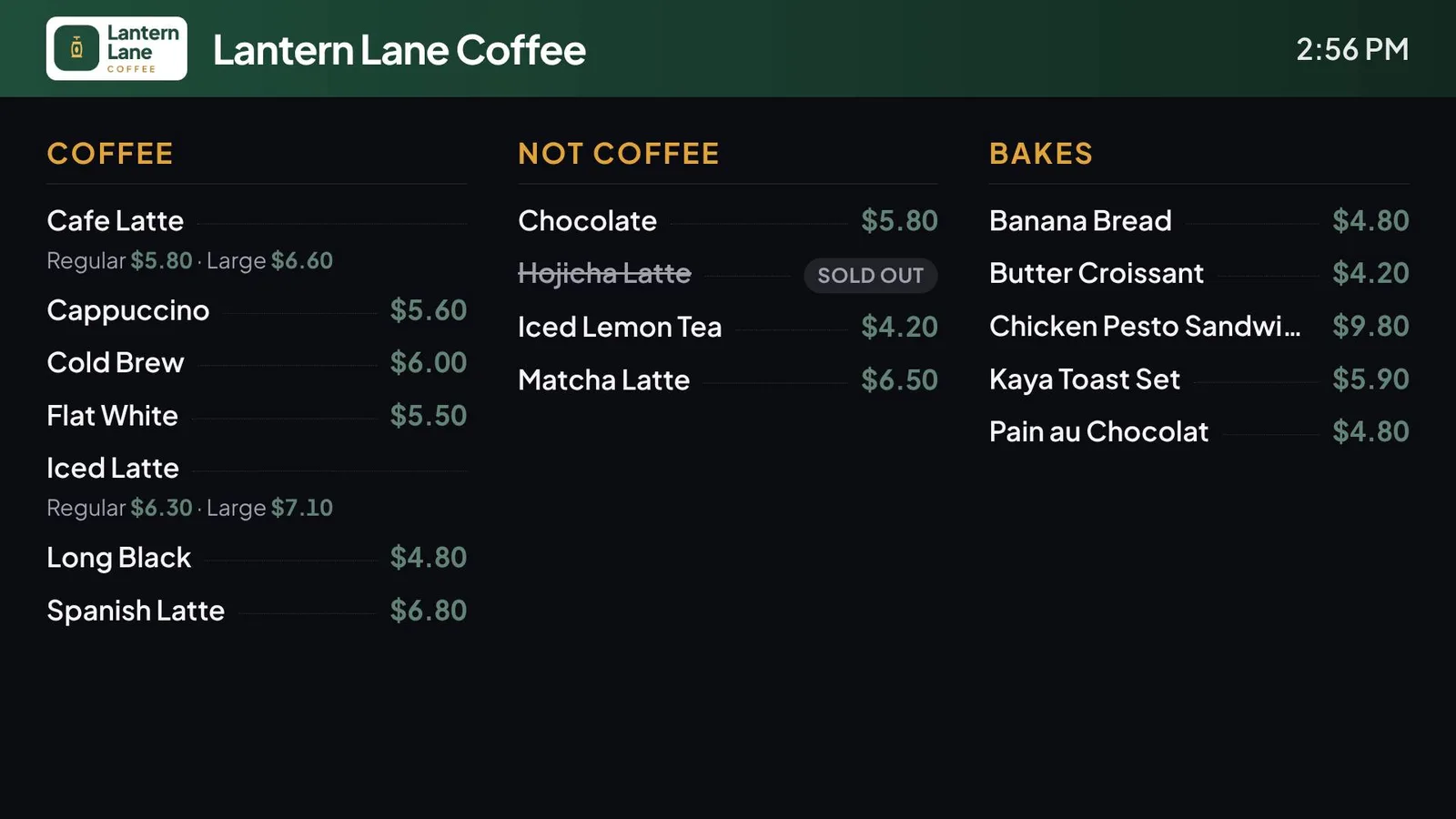
A live menu screen, filmed with our demo shop Lantern Lane Coffee.
How your screens connect to the POS
No cables, no pairing, no second system. The till and the TVs share one menu.
Step 1 · At the counter
Change it on the POS
Tap Menu on the POS, then change a price or tap Sold out. Or do it from your dashboard at home.
Step 2 · In Replily.ai
One menu for everything
The POS and every screen read the same Products list in your account. Nothing is typed twice.
Step 3 · On every TV
Screens update themselves
Each screen checks every 5 seconds and redraws with the new price or the sold-out label. Nobody touches the TV.
Price changes need a manager. Owners and managers change prices on the POS. A cashier can only do it with a manager's PIN. Anyone on the till can mark an item sold out.
Every change is on record. Old price, new price, who changed it, who approved it and when, in your dashboard.
Watch it in 90 seconds
Where to add a screen in the dashboard, opening it on a TV, and a price change on the POS showing up live.
Filmed with our demo shop Lantern Lane Coffee. The POS scenes use the live demo below.
Try it live
Change the till. Watch the TV.
Pick an item on the demo POS, change its price or mark it sold out, and the menu screen beside it follows. Open the TV in a second window to see it the way your customers will.
Flat White
On a real till, a cashier needs a manager's PIN to change a price. Anyone can mark an item sold out.

Lantern Lane Coffee
Coffee
- Flat White$5.50
- Cafe Latte
Regular $5.80 · Large $6.60
- Long Black$4.80
- Cappuccino$5.60
- Spanish Latte$6.80
- Cold Brew$6.00
Not coffee
- Matcha Latte$6.50
- Hojicha Latte$6.50
- Chocolate$5.80
- Iced Lemon Tea$4.20
Bakes
- Butter Croissant$4.20
- Pain au Chocolat$4.80
- Banana Bread$4.80
- Kaya Toast Set$5.90
- Chicken Pesto Sandwich$9.80
Pick an item on the till and change it
This demo runs in your browser with our demo shop. In a real shop the screen picks up a change within about 5 seconds, wherever the TV is.
Built for the screens your customers order from
Cafes and bubble tea
Sizes and toppings with their own prices, and the drink of the month on its own slide.
Food stalls and kiosks
Sold out at 2pm? One tap at the till and the queue sees it before they reach the counter.
Bakeries
Mark trays sold out as they go, and bring them back when the next batch is out.
Retail counters
Show this week’s prices and your promo video by the counter, from the same list the till uses.
Everything on the board, kept right
Live prices
A new price on the POS or in your dashboard shows on every screen within about 5 seconds.
Sold out in one tap
Tap Sold out on the POS. The item is struck through on the TV and the till will not ring it up until you turn it back on.
Sizes and options
Regular and Large, or any options you sell, each with its own price on one line.
Pages that turn themselves
A long menu is split into pages that change by themselves, so the text stays big enough to read from the queue.
Featured items
Pick up to 12 items for a full-screen slide with the photo and price, between rounds of the menu.
Your promo videos
The videos you already upload for your customer app play between rounds, with the sound off.
One menu, several TVs
Drinks on one TV and food on the other: each screen shows the categories you choose.
Keeps going if Wi-Fi drops
The screen keeps showing the last menu it loaded and catches up when the connection is back.
Your look
Landscape or portrait, dark or light. Your logo and brand colours on the Growth plan and above.
What it looks like on the TV
Menu pages. Categories in columns, with sizes and sold-out labels.
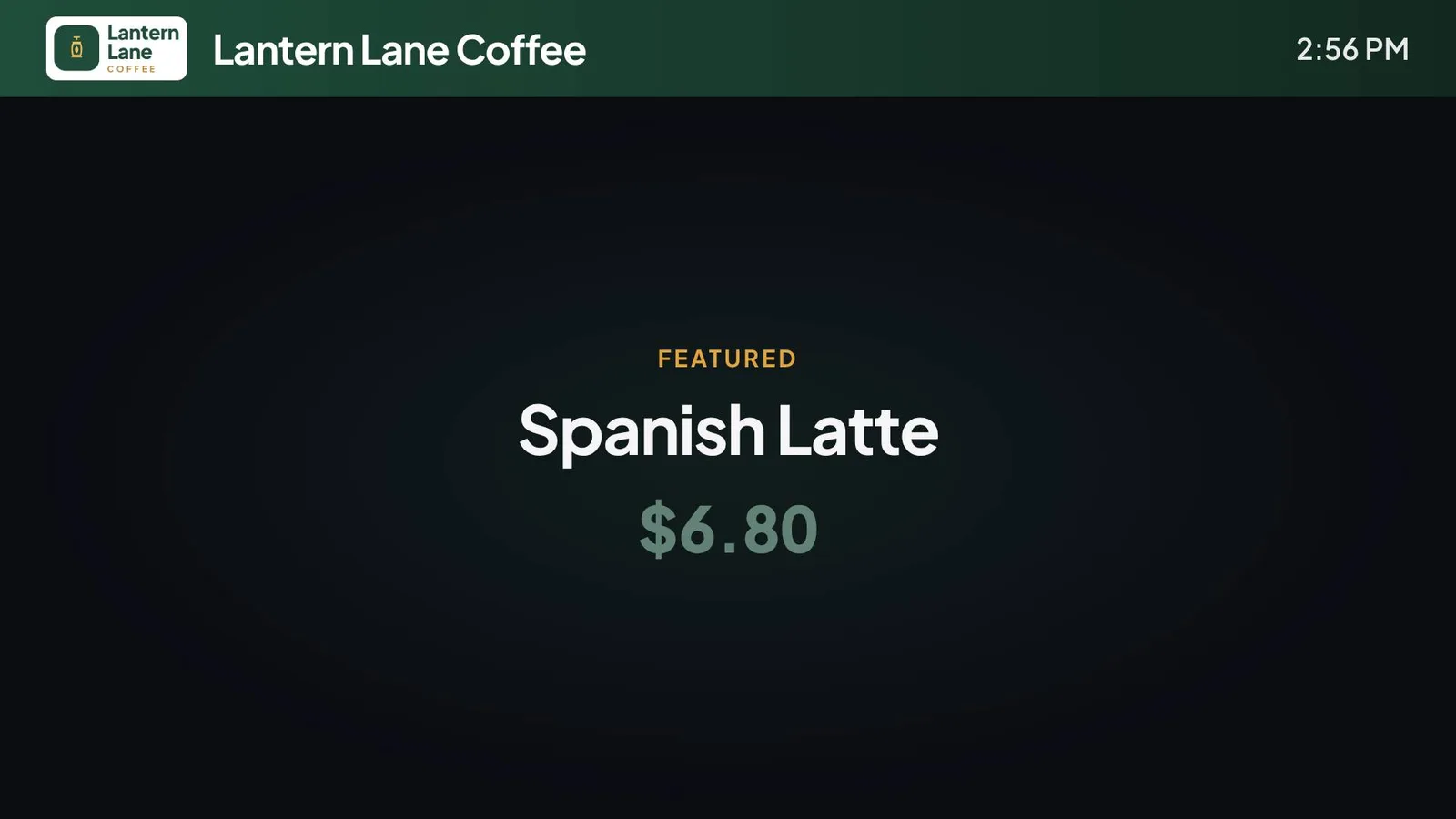
Featured items. One item at a time, full screen, between rounds of the menu.
Demo shop: Lantern Lane Coffee, an example shop we use to show the product.
Set up in three steps
Step 1
Add a screen
In your dashboard, open Menu screens and add one. Choose the categories, landscape or portrait, and the look.
Step 2
Open the link on the TV
In the TV browser, an Android TV or Fire TV stick, or a tablet, open the screen link and tap Full screen.
Step 3
Run the shop
Change prices and sold-out items from the POS or the dashboard. The TV keeps up by itself.
One price per screen
Prices in Singapore dollars per month, before GST if any.
Menu screen
S$9/month per screen
- Live prices and sold-out from the POS
- Pages, featured items and promo videos
- Landscape or portrait, dark or light
- Price change record with who approved it
Added to your Shop plan
Screens go on any paid Shop plan, on the same monthly bill as your POS.
One screen free in the trial
Every paid plan starts with a 14-day trial, and one menu screen is included while it runs.
Change any time
Add or remove screens in Subscription. The difference for the month is worked out by day.
No hardware from us
Use the TV you have, or plug in an Android TV or Fire TV stick. No contract, nothing to return.
Need the POS first? See Replily.ai Shop. Running a team too? Team & Pay is on the same bill.
Questions about menu screens
How does the screen connect to my POS?
There is no cable or pairing. Your POS and your menu screens read the same Products list in your Replily.ai account. When a price or a sold-out switch changes, on the POS or in the dashboard, each screen sees it the next time it checks, every 5 seconds, and redraws itself. The TV only needs an internet connection.
Who can change prices from the POS?
Owners and managers can change a price from the Menu button on the POS. A cashier can too, but only with a manager choosing their name and entering their PIN. Anyone signed in to the till can mark an item sold out or back on. Every price change is listed in Menu screens with the old price, the new price, who changed it and who approved it.
What TVs does it work with?
Any screen that can open a web page: the browser on most smart TVs, an Android TV or Fire TV stick plugged into the TV, or a tablet on a stand. There is no app to install. Open the screen link once, tap Full screen, and leave it running. Older smart TV browsers can be slow; a TV stick is the most reliable choice.
What happens if the internet drops?
The screen keeps showing the last menu it loaded, and picks up any changes when the connection comes back. If the TV is switched off and on while offline, it needs the connection to load the menu again.
Do I have to type my menu again?
No. The screens use the products, categories, sizes and photos you already have for the POS. Add a product once and it is on the till and on the TV.
How much does it cost?
S$9 per screen per month, added to any paid Shop plan on the same monthly bill. One screen is free to try while your 14-day trial runs. Add or remove screens at any time in Subscription.
Can I use the same link on two TVs?
Each screen has its own settings and link, so two TVs showing the same menu are two screens. That way each one can show different categories or turn the other way, and you can see which TVs are on.